Bluetooth
1. 简介
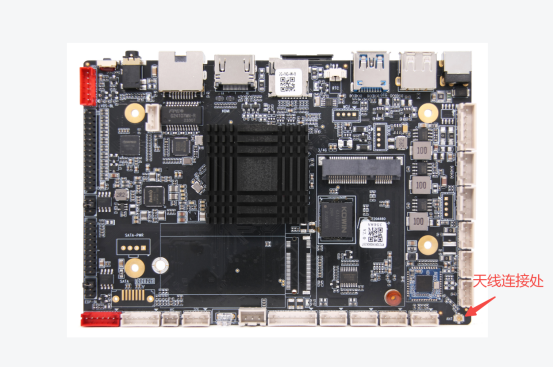
AIOT-3568A设有蓝牙模块,可以直接搜索,也可接天线用于信号增幅。 蓝牙模块以及如何连接天线如下:
2. HDC相关指令
3. 标准API使用方法
备注
本模块提供了对蓝牙操作和管理的方,首批接口从API version 10开始支持。后续版本的新增接口,采用上角标单独标记接口的起始版本。
蓝牙标准接口
@ohos.bluetooth.ble (蓝牙ble模块)
API使用说明
使用蓝牙相关API开发时候,需要先了解熟悉第一个open Harmony工程的创建,相关文档 Hello World应用以及部署
- 在使用一个API时,需要注意以下几点:
API权限说明
API的参数与返回值
API调用错误的时候,参考API错误码和通用错误码
API示例的正确使用
如下图所示,即为标准API文档
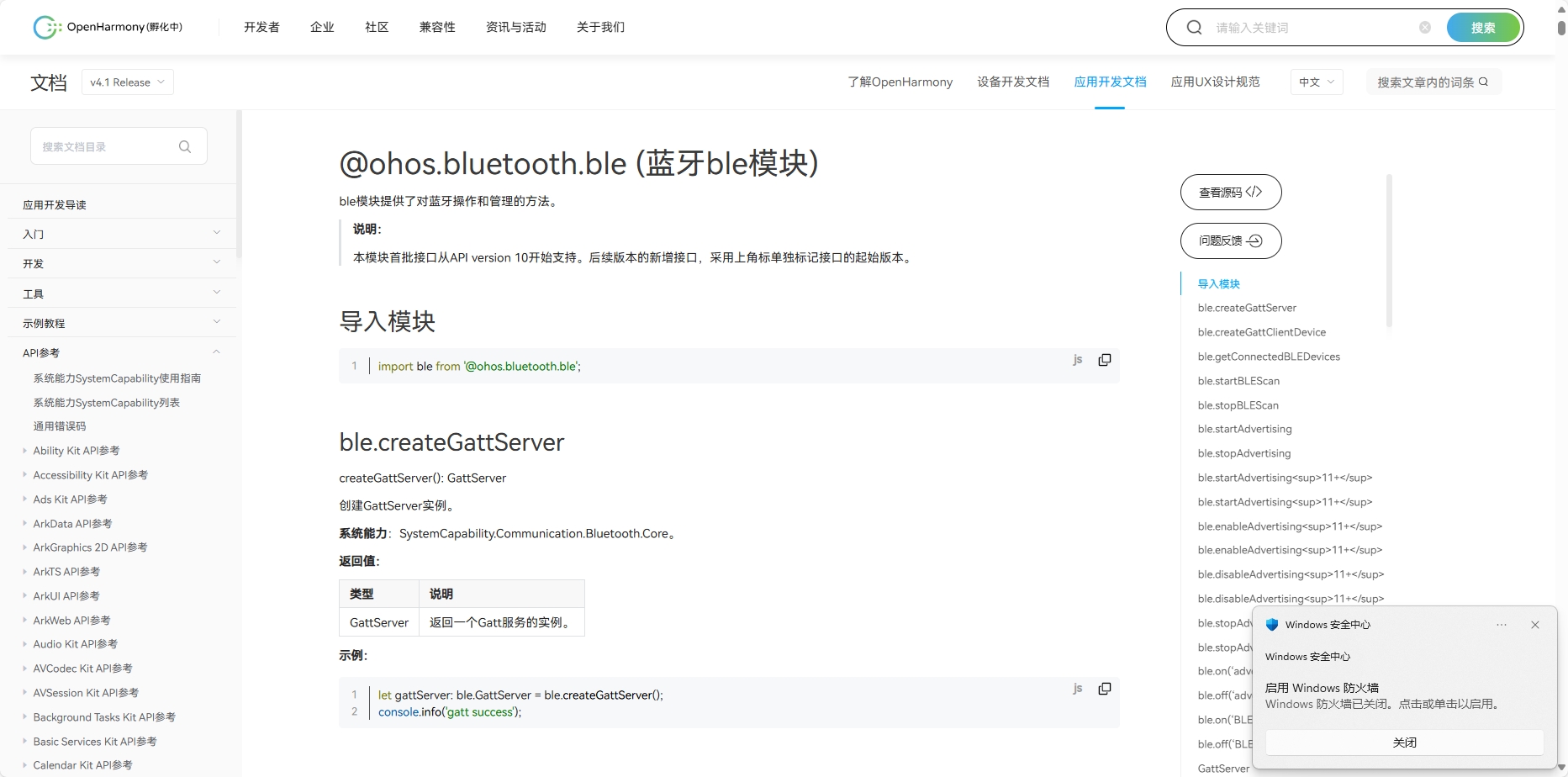
官方标准开发文档
4. 社区Demo
简介
为了帮助开发者更快速的使用板子开发和学习,我们在gitee上提供了一个蓝牙相关的使用示例,每一个项目都是独立的DevEco Studio工程,开发者可以将工程导入到DevEco Studio中即可,通过浏览代码、编译工程、安装和运行应用示例来了解应用示例中涉及API的使用方法。
小技巧
在导入社区Demo工程的时候,需要开发者需要注意本地的开发环境是否与项目的一致,即本地SDK是否与项目SDK一致。
导入模块
在使用蓝牙标准API的时候,最重要的一步是导入蓝牙的模块,才能使用蓝牙相应的API接口。通常模块导入是在文件头导入 导入模块如下:
import blueToothManager from ‘@ohos.bluetooth.ble’
API 介绍
社区Demo的实现引用以下API,实现如何打开蓝牙、蓝牙扫描,以及蓝牙的连接的基本实现。
备注
以下介绍均以为简单介绍API的系统能力以及对应函数 请结合 gitee蓝牙示例 和 蓝牙官方标准API开发文档 去熟悉开发
ble.createGattServer(创建GattServer实例)
createGattServer(): GattServer
ble.createGattClientDevice(创建一个可使用的GattClientDevice实例)
createGattClientDevice(deviceId: string): GattClientDevice
ble.getConnectedBLEDevices(获取和当前设备连接的BLE设备)
getConnectedBLEDevices(): Array<string>
需要权限:ohos.permission.ACCESS_BLUETOOTH
ble.startBLEScan(发起BLE扫描流程)
startBLEScan(filters: Array<ScanFilter>, options?: ScanOptions): void
需要权限:ohos.permission.ACCESS_BLUETOOTH
ble.stopBLEScan(停止BLE扫描流程)
stopBLEScan(): void
需要权限:ohos.permission.ACCESS_BLUETOOTH
ble.startAdvertising(开始发送BLE广播)
startAdvertising(setting: AdvertiseSetting, advData: AdvertiseData, advResponse?: AdvertiseData): void
需要权限:ohos.permission.ACCESS_BLUETOOTH
- ble.stopAdvertising(开始发送BLE广播)
stopAdvertising(): void
需要权限:ohos.permission.ACCESS_BLUETOOTH
Demo主要实现源码
- BT.ets
  1        import ble from "@ohos.bluetooth.ble"
  2        import { BusinessError } from '@ohos.base'
  3        // import access from '@ohos.bluetooth.access';
  4
  5        const minRssi = -100
  6        @Entry
  7        @Component
  8        struct Index {
  9        @State message: string = 'Hello BLE'
 10        @State availableDevices: Array<ble.ScanResult> = [];
 11
 12        addData(data:ble.ScanResult):void {
 13           let bFind = false
 14           this.availableDevices.forEach(element => {
 15              if (!bFind && element.deviceId == data.deviceId) {
 16              console.info('BLE scan update ' + data.deviceId + ' rssi:' + element.rssi +' ==> '+ data.rssi)
 17              element.rssi = data.rssi
 18              bFind = true
 19              }
 20           })
 21           if (!bFind) {
 22              console.info('BLE scan add ' + data.deviceId + ' count:' + this.availableDevices.length)
 23              this.availableDevices.push(data)
 24              this.message='BLE count:' + this.availableDevices.length
 25           }
 26        }
 27
 28        dataToString(data:ArrayBuffer) :String {
 29           let str = ''
 30           let v = new Uint8Array(data);
 31           v.forEach(element => {
 32              let s = ''
 33              s =  element.toString(16)
 34              if (s.length == 1) {
 35              s = '0'+s
 36              }
 37              str+=s+' '
 38           });
 39           return str
 40        }
 41
 42        openBle():void {
 43           try {
 44              ble.on("BLEDeviceFind", (data:Array<ble.ScanResult>) => {
 45              // console.info('BLE scan device find result = '+ JSON.stringify(data));
 46              let i = 0
 47              data.forEach(element => {
 48                 console.info('BLE scan device[' + i + '] deviceId = '+ element["deviceId"] +
 49                    ' name = ' + element["deviceName"]  +
 50                    ' rssi = ' + element["rssi"] +
 51                    ' data['+element["data"].byteLength+'] = ' +
 52                 this.dataToString(element["data"]))
 53                 if (element.rssi > minRssi && element.deviceName != '' ) {
 54                    this.addData(element)
 55                 }
 56                 i++
 57              });
 58              });
 59
 60              ble.startBLEScan(
 61              null,
 62              {
 63                 interval: 500,
 64                 dutyMode: ble.ScanDuty.SCAN_MODE_LOW_POWER,
 65                 matchMode: ble.MatchMode.MATCH_MODE_AGGRESSIVE,
 66              }
 67              );
 68           } catch (err) {
 69              console.error("ble errCode:" + (err as BusinessError).code + ",errMessage:" + (err as BusinessError).message);
 70           }
 71
 72        }
 73
 74        //   onAccessEvent(data: access.BluetoothState):void {
 75        //   console.info('bluetooth state = '+ JSON.stringify(data));
 76        //   if (data == access.BluetoothState.STATE_ON) {
 77        //     this.openBle()
 78        //   }
 79        // }
 80
 81        build() {
 82           Row() {
 83              Column() {
 84
 85              Text(this.message)
 86                 .fontSize(30)
 87                 .fontWeight(FontWeight.Bold)
 88
 89              // 添加按钮,开启ble扫描
 90              Button() {
 91                 Text('ble start')
 92                    .fontSize(30)
 93                    .fontWeight(FontWeight.Bold)
 94              }
 95              .type(ButtonType.Capsule)
 96              .margin({
 97                 top: 20
 98              })
 99              .backgroundColor('#0D9FFB')
100              .width('30%')
101              .height('10%')
102              // 跳转按钮绑定onClick事件,点击时跳转到第二页
103              .onClick(() => {
104                 console.info("onClick")
105                 try {
106                    this.openBle()
107                    // }
108                 } catch (err) {
109                    console.error('ble errCode: ' + (err as BusinessError).code + ', errMessage: ' + (err as BusinessError).message);
110                 }
111              })
112
113              // 添加按钮,停止ble扫描
114              Button() {
115                 Text('ble stop')
116                    .fontSize(30)
117                    .fontWeight(FontWeight.Bold)
118              }
119              .type(ButtonType.Capsule)
120              .margin({
121                 top: 20
122              })
123              .backgroundColor('#0D9FFB')
124              .width('30%')
125              .height('10%')
126              .onClick(() => {
127                 this.availableDevices = []
128                 this.message = 'Hello BLE'
129                 // AppStorage.setOrCreate('bluetoothAvailableDevices', this.availableDevices);
130                 try {
131                    ble.off('BLEDeviceFind')
132                    ble.stopBLEScan();
133                 } catch (err) {
134                    console.error("ble errCode:" + (err as BusinessError).code + ",errMessage:" + (err as BusinessError).message);
135                 }
136              })
137
138              List({ space: "4vp", initialIndex: 0 }) {
139                 ForEach(this.availableDevices, (item: ble.ScanResult, index: number) => {
140                    ListItemGroup() {
141                    ListItem() {
142                       Text('['+index.toString(10) +"]" + item.deviceId)
143                          .textAlign(TextAlign.Center)
144                          .fontSize(30)
145                          .backgroundColor(Color.Yellow)
146                          .width('100%')
147                    }
148                    ListItem() {
149                       Text('    name:' + item.deviceName)
150                          .textAlign(TextAlign.Start)
151                          .fontSize(30)
152                          .backgroundColor(Color.Orange)
153                          .width('100%')
154                    }
155
156                    ListItem() {
157                       Text('    rssi:' + item.rssi.toString(10))
158                          .textAlign(TextAlign.Start)
159                          .fontSize(30)
160                          .backgroundColor(Color.Orange)
161                          .width('100%')
162                    }
163
164                    ListItem() {
165                       Text('    connectable:' + item.connectable)
166                          .textAlign(TextAlign.Start)
167                          .fontSize(30)
168                          .backgroundColor(Color.Orange)
169                          .width('100%')
170                    }
171
172                    ListItem() {
173                       Text('    data:' + this.dataToString(item.data))
174                          .textAlign(TextAlign.Start)
175                          .fontSize(30)
176                          .backgroundColor(Color.Orange)
177                          .width('100%')
178                    }
179
180
181                    }
182
183
184                 })
185              }
186              .layoutWeight(10)
187              .backgroundColor(0xDCDCDC)
188              .height('50%')
189              .width('60%')
190              .margin({
191                 top: 20
192              })
193              }
194              .width('100%')
195           }
196           .height('100%')
197           }
198        }
5. 代码编译
小技巧
代码编译详细流程可见,Hello World应用以及部署 中的第二部分(构建第一个页面部分内容)
6. 代码运行效果
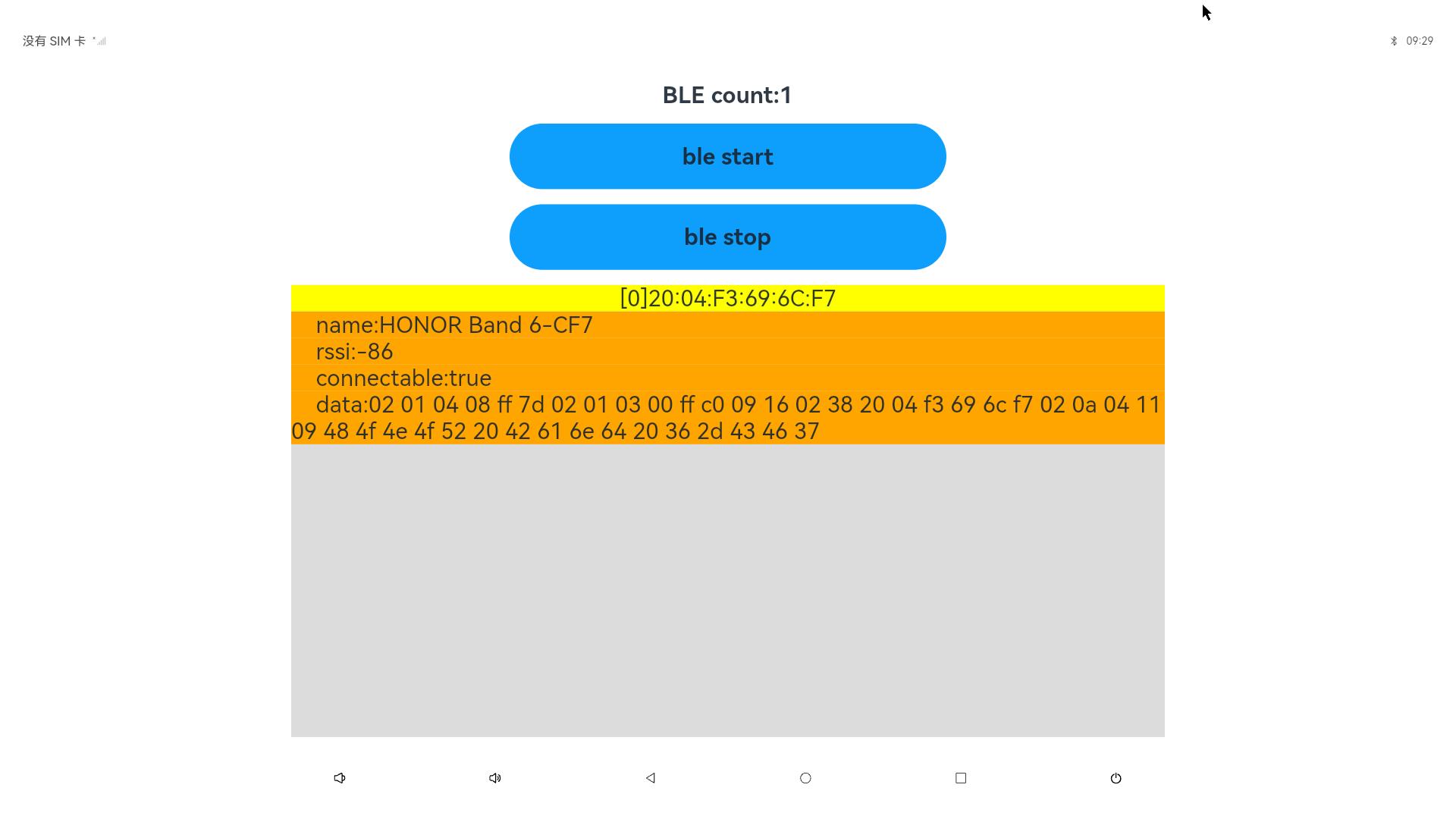
用以上标准API接口实现蓝牙 Demo,如下图所示: